
Adding a New Channel
Learn how to add a new auto enhancement channel by configuring color, advanced, and product settings in Settings > Photo Processing.
To create a new channel, navigate to Settings > Photo Processing > Auto Enhancement.
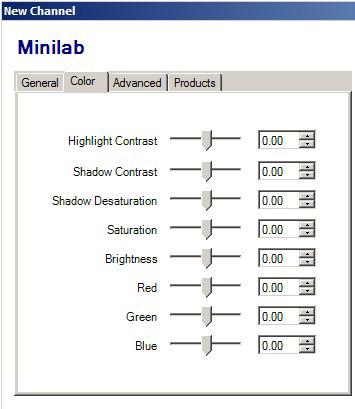 |
| Color Tab |
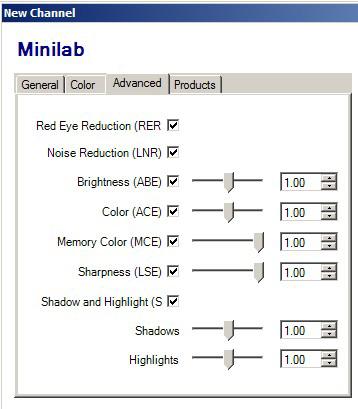 |
| Advanced Tab |
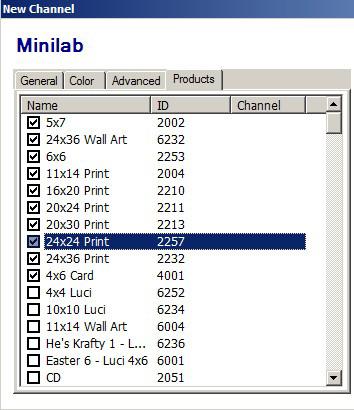 |
| Products Tab |
- Click on the Add button to open the new channel window.
- Under the General tab, fill in the following settings:
- Name: Name of the channel
- Description: A description for the channel for easy reference in the lab
- Enable this Channel: Check the box to enable the channel
- Under the Color tab, use the slide bars to configure the color corrections that are to be made to the image. The following options are available:
- Highlight Contrast
- Shadow Contrast
- Shadow Desaturation
- Saturation
- Brightness
- RGB color values
- Under the Advanced tab, you can apply additional corrections including the following:
- Red Eye Reduction
- Noise Reduction
- Brightness Adjustment
- Color Sharpness
- Shadow Values
- Highlight Values
-
Under the Products tab, select the products to which you would like to apply the color enhancement settings in use for this channel.
-
Once complete, Click OK.
-
(Optional) If you wish to create different I2E profiles for products created on different output devices, repeat these steps for each device.