
Configuring PayPal Payments
To ensure proper setup of integrating PayPal, please make sure to read and follow the steps on this page top to bottom.
To ensure proper setup of integrating PayPal, please make sure to read and follow the steps on this page top to bottom.
1
Configure your account in PayPal- Sign up for a new business account in PayPal, or log into an existing business account that you have.
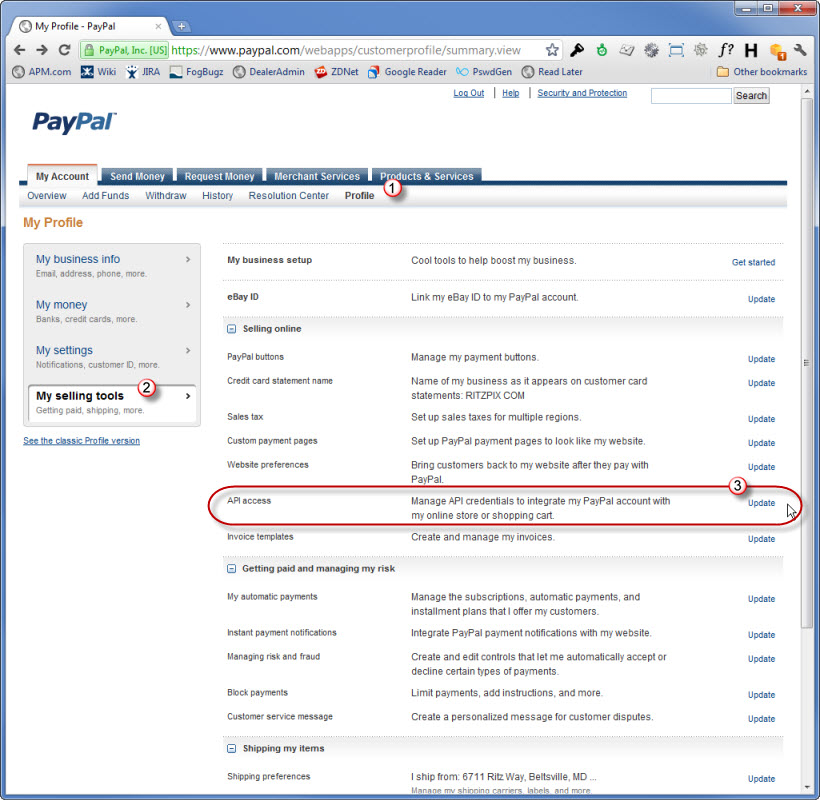
- Click on the Profile link, followed by "My selling tools", then "API access".
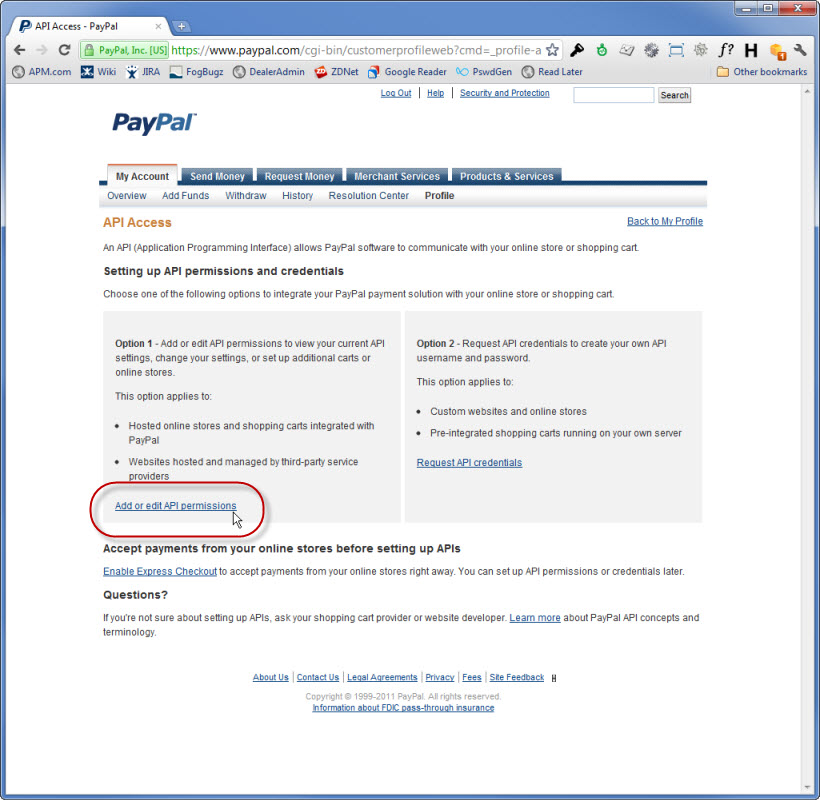
- Click on the "Add or edit API permissions" link.
- Click on the "Add New Third Party" button.
- Enter the username "paypal_api1.lucidiom.com" and hit the "Lookup" button.

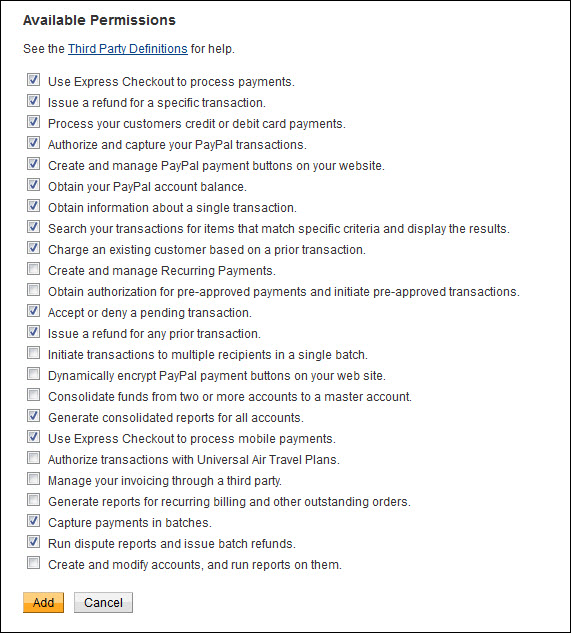
- Select each of the API permissions shown here and then hit the "Add" button.
Your PayPal configuration is complete. Now you'll finish the setup in Lab 50.
2
Configure PayPal in Lab 50- In Lab 50, navigate to Store Management -> Payment methods.
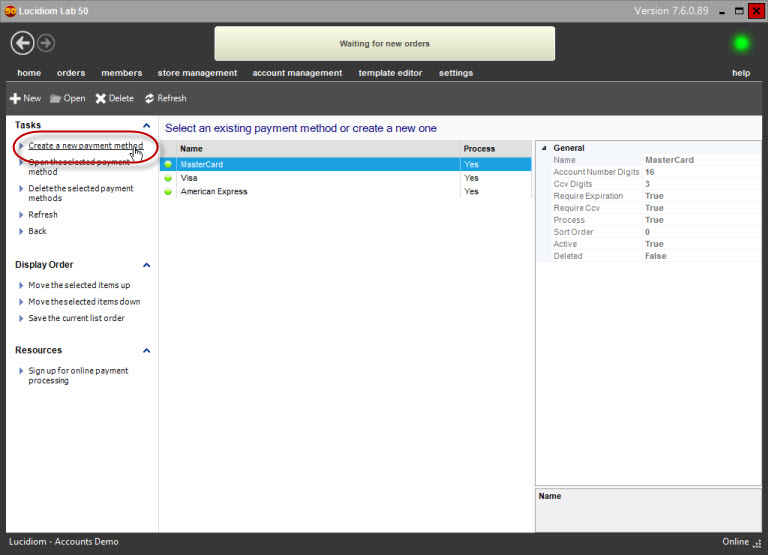
- Click on the "Create a new payment method" link.
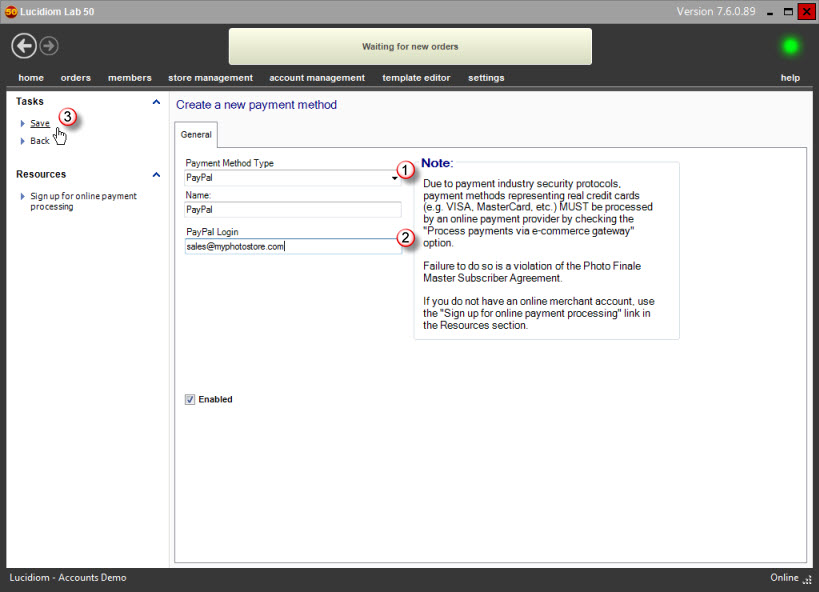
- On the Payment Method details screen, select "PayPal" from the type dropdown, then enter your PayPal account email address into the "PayPal Login" field. Finally, hit the "Save" link.
3
Link your databaseThe final step required is for Photo Finale to link your dealer account to PayPal. Please contact Photo Finale Support and request that we finalize the PayPal setup for your dealer code.
Your Lab 50 configuration is complete. PayPal will show up as a payment option on your website within 60 minutes. Once it is available, please be sure to test a full transaction to ensure your setup is working.