
Using the Folio Rendering XML to resize output
Photo Finale Website > Photo Finale Site Setup > Adding Products to Your PF Site > Adding creative (photo or template-based) products%20products.md)
Photo Finale Website > Photo Finale Site Setup > Adding Products to Your PF Site > Adding creative (photo or template-based) products
The apmconfig_folio_rendering.xml file allow a dealer to resize folio output after it has been rendered. It supports several use cases:
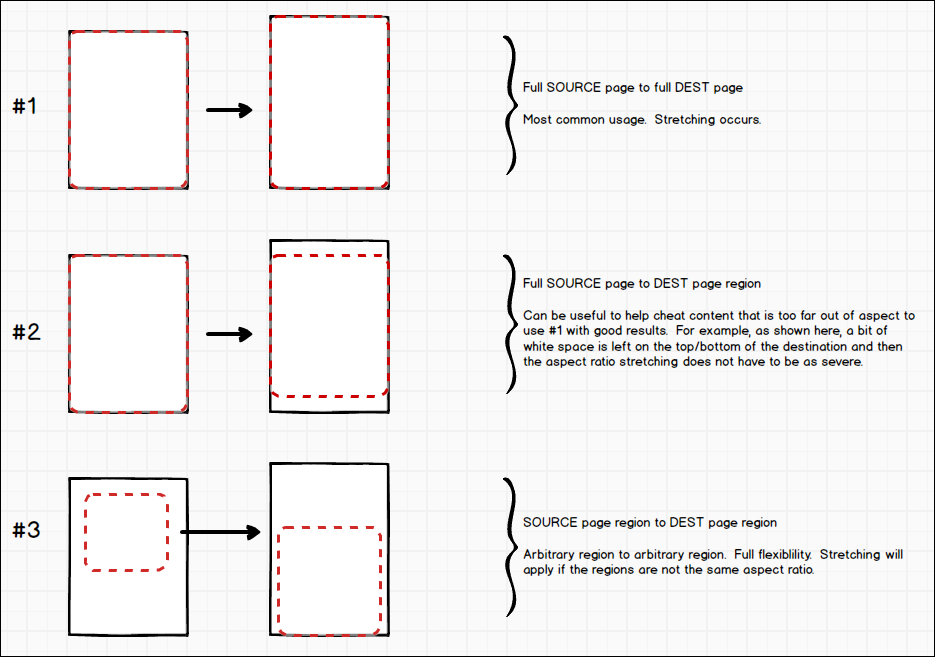
XML Spec
A folio rendering XML entry looks like:
<rendering>
	<name>Adult T-shirt, Vertical Image</name>
	<output_width>10500in</output_width>
	<output_height>13500in</output_height>
	<placement>
		<left>1875in</left>
		<top>0in</top>
		<width>10125in</width>
		<height>13500in</height>
	</placement>
	<target_products> <!-- fulfillment IDs -->
		<product_id>7009980</product_id> <!-- Product ID 7009178. PRGift;6189. Adult S. Original output 9x12, Fuji needs 10.5x13.5 -->
		<product_id>7009981</product_id> <!-- Product ID 7009178. PRGift;6190. Adult M. Original output 9x12, Fuji needs 10.5x13.5 -->
		<product_id>7009982</product_id> <!-- Product ID 7009178. PRGift;6191. Adult L. Original output 9x12, Fuji needs 10.5x13.5 -->
		<product_id>7009983</product_id> <!-- Product ID 7009178. PRGift;6192. Adult XL. Original output 9x12, Fuji needs 10.5x13.5 -->
		<product_id>7009984</product_id> <!-- Product ID 7009178. PRGift;6193. Adult XXL. Original output 9x12, Fuji needs 10.5x13.5 -->
	</target_products>
</rendering>
XML Element Descriptions
| Node | Description |
|---|---|
| <name> | This is only used for the SetupWizard UI. |
| <output_width> <output_height> | This is the desired output size. (The right-hand image in the mockups above.) |
| <placement> | This is where the source image should be drawn on the destination page. (The red dotted line on the right-hand side in the mockups above.) |
| <source> | Optional. The <source> section specifies the area of the source rendering that is copied. (The red dotted line on the left-hand side in mockup #3 above.) It is only used for scenario #3 pictured above. If no <source> node is specified, the rendering assumes the full source page should be used by default. |
| <target_products> | This specifies one or more Product IDs for which the rendering should apply. |
File Info
This file is called: apmconfig_folio_rendering.xml and is located (or can be added to): C:\Program Files (x86)\Photo Finale Print 50\Tools\FolioServer
Examples
<!-- #1 from diagram: aspect of original is exact or close to what is needed. in this case, 8.31x3.63 would be equal to 8x3.495, so in this example, the image will be very slightly stretched vertically -->

<rendering>
	<name>11oz White Ceramic Mug</name>
	<output_width>8000in</output_width> <!-- dealer needs to output 8x3.5 -->
	<output_height>3500in</output_height>
	<placement>
		<left>0in</left>
		<top>0in</top>
		<width>8000in</width>
		<height>3500in</height>
	</placement>
	<target_products>
		<product_id>8014663</product_id> <!-- original mug outputs 8.31x3.63 -->
	</target_products>
</rendering>