
Order Review Dashboard
Manage held orders with the Order Review Dashboard to approve, inspect, and prevent fraudulent orders before production begins.
The Order Review Dashboard allows store staff to hold, review & approve orders based on various criteria. Perfect for labs who want to approve orders sent to an outlab, to visually check content before production, and ideal for catching fraudulent orders. Requires Marketplace Bundle subscription.
What does it do and why do I want it?
In a nutshell: Review Orders allows you to hold orders before they get sent to production (local or third party).
- To have eyes on an order and approve it before it's sent to a third party fulfiller
- To catch fraud orders before they get sent to production (and you get a bill for them and flagged for unapproved cc charges)
- To adjust the flow of orders during high volume periods
- To easily removed cancelled orders from your revenue share calculation
- To approve high dollar orders before the production step (local or third party)
- To visually check creative orders for mistakes
Ok, show me
Video walkthrough:
Do I have it already? Maybe!
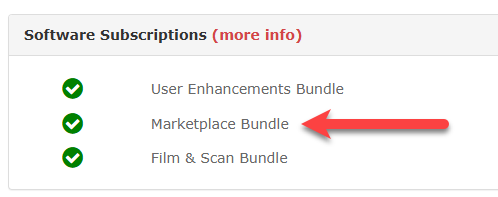
Order Review is a feature available only if you subscribe to the Marketplace Bundle (formerly called the Shipment & Delivery Bundle). Two clues that you have it:
- myLab Dashboard, the Marketplace Bundle has a green check
- The myLab menu has a tab called Review

- To get it
- Read details at https://www/photofinale.com/bundles (you can click the "more info" from myLab
- Order at https://www.photofinale.com/GO or through your sales rep
How do I set it up?
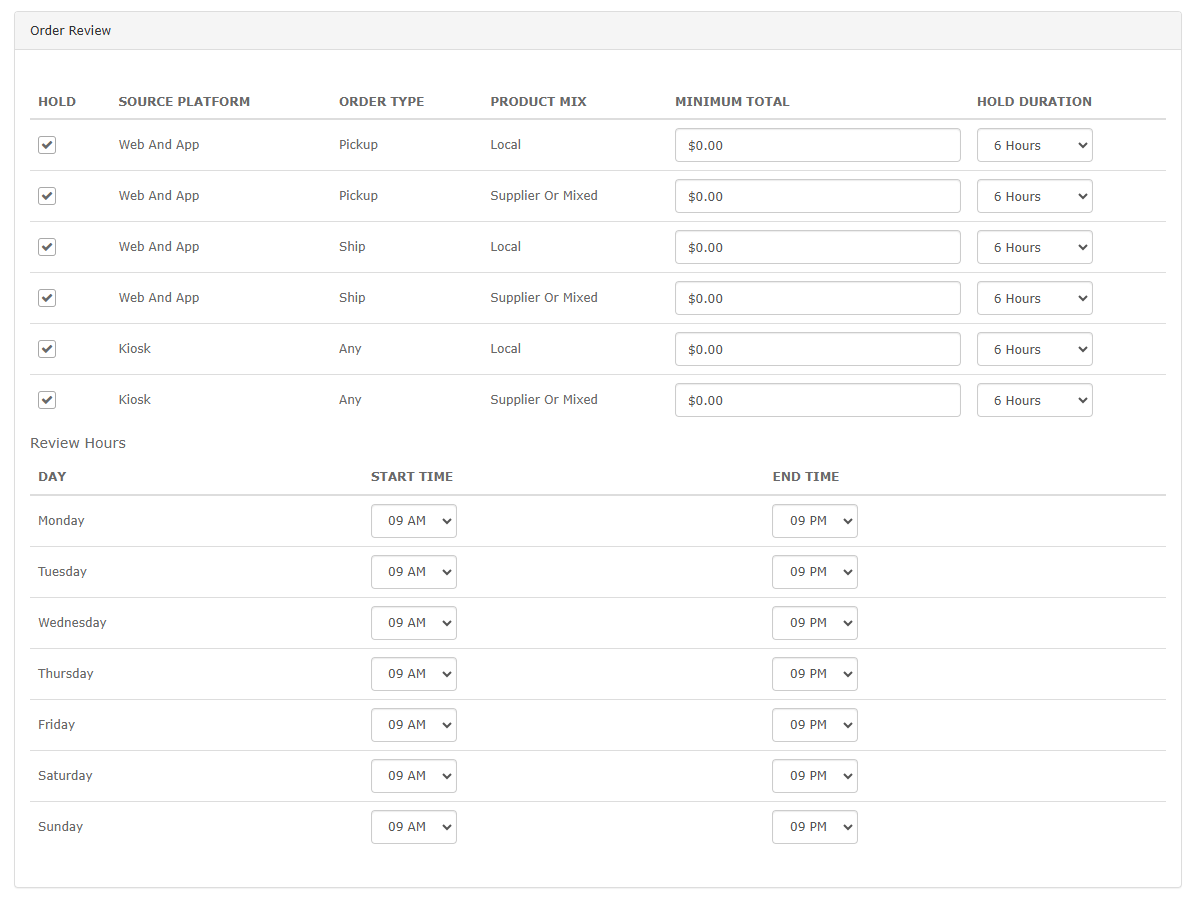
In myLab > Store Management > General Settings > Order Review (section).
It looks like this:
What all this means:
-
HOLD
- There are 6 categories of orders, which are combinations of the source platform (Web & App vs. Kiosk), order type (pickup vs. mail), and product mix (local vs. supplier or mixed). If the Hold checkbox for a row is not selected, then the order total and hold time controls are disabled. (By default, the hold values are all disabled.) Check to enable for the listed source, order type, and product mix desired.
-
MINIMUM TOTAL
- The default order total values is 0.00. You can set this amount as you wish. Having 0.00 means that order total doesn't factor in when it comes to hold orders.
- Example: If you set to 10.00, anything under 10.00 would not factor into the reason to hold the order.
-
HOLD DURATION
- The HOLD DURATION offers choices of 30 Minutes, 1 Hour, 2 Hours, 3 Hours ... 23 Hours, 24 Hours, 30 Hours, 36 Hours, 42 Hours, 48 Hours. (Default value is 6 Hours.) The HOLD DURATION is how many REVIEW HOURS an order is held before it gets automatically released.
-
REVIEW HOURS
- The REVIEW HOURS allow the operator to set what hours reviews are conducted. The dropdowns will have hourly values from 12AM to 11PM, as well as a blank option to denote no hours for a given day. If the blank Start Time option is selected, the End Time control is disabled. By default, all values have a START TIME of 9AM and an END TIME of 9PM. (Times are your local times.) Keep in mind: Your review hours may not be the same as your business open hours.
EXAMPLE: Your hold time is 6 hours, you have review hours set 9am-9pm M-F. The order comes in at 8pm on Friday. Assuming the rest of the hold criteria are met, then the order would be held one hour on Friday (til 9pm when review hours end), and then for 5 hours after 9am (when review hours start again) on Monday, before it's automatically released for production on Monday at 2pm.
Now, finally, how do I use it?
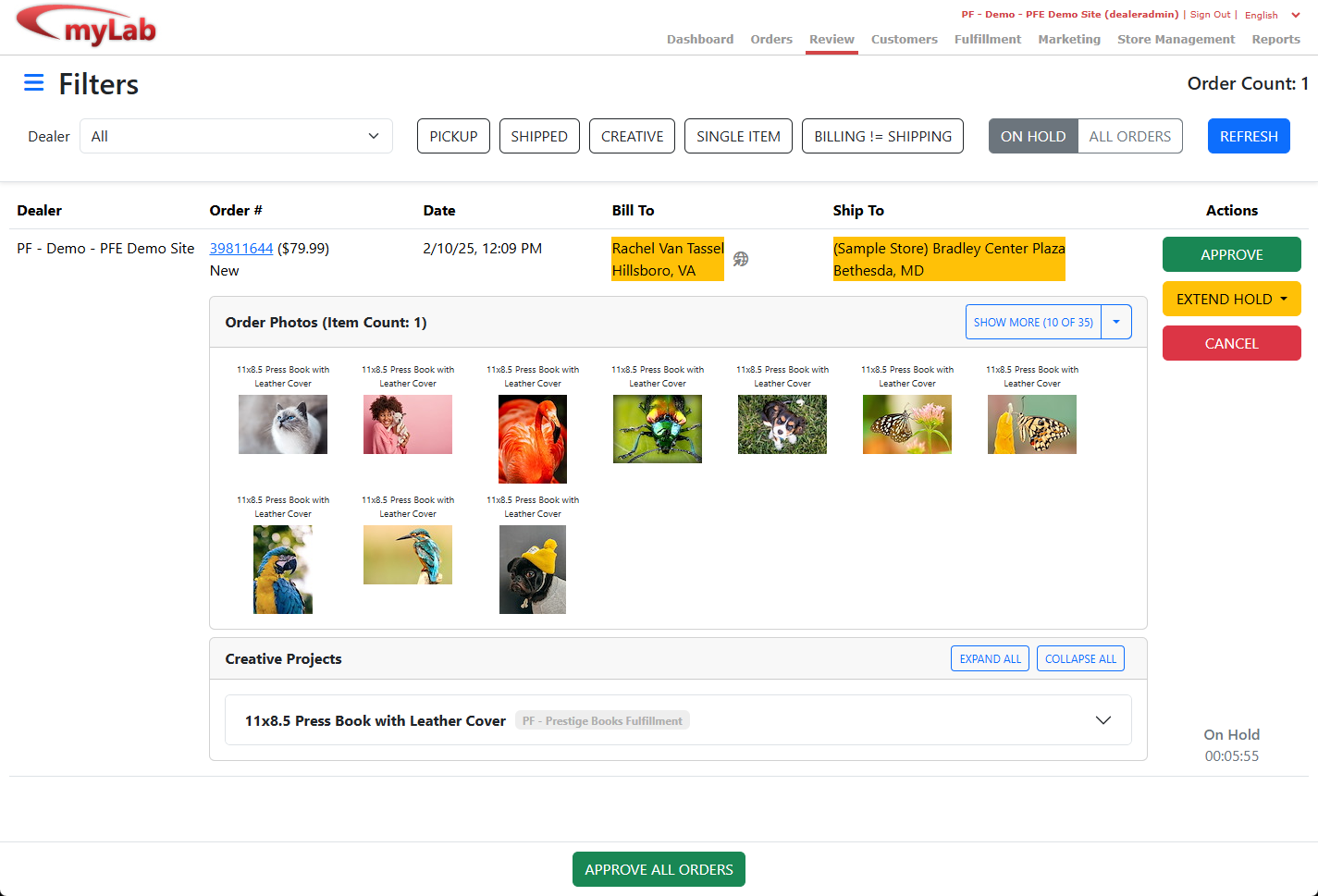
In myLab > Review
It looks like this:
What all this means:
- Filters (buttons across the top)
- Click to toggle on or off then make sure to click REFRESH
- PICKUP or SHIPPED is the delivery method
- CREATIVE is an order with a non-print product
- SINGLE ITEM and where BILLING != SHIPPING (means where billing address does not equal shipping address), can be helpful to catch fraudulent orders, as a common hacker technique credit card checking and bad guys will often place orders of a single product, and often those orders have a billing and shipping address that does not match.
- Order #
- Click the order number to jump into that order's detail page
- Actions
- APPROVE will send the order on the way to its destination
- EXTEND HOLD will allow you to add hours to the hold time
- BYPASS (may be shown in place of EXTEND HOLD)
- When looking at ALL ORDERS, the yellow button is instead BYPASS. It essentially hides the order from the ALL ORDERS display temporarily for the selected period. You are not extending a hold on the order, because the order is not being held. You are simply making it disappear from this page for a period of time.
- CANCEL will cancel the order is generally the same as the Cancel option in myLab except:
- for held orders, it will automatically exempt the order from revenue share
- if an order is marked as being cancelled due to fraud, it helps us improve our training
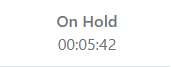
- At the bottom of the actions panel, you can see how much longer the order will be on hold for:
- More
- Clicking on the customer or store yellow box will expand it to show full address
- SHOW MORE to see more images in the window
- EXPAND ALL or COLLAPSE ALL to view creative projects
- APPROVE ALL ORDERS at once
- Hovering over the globe/arrow icon next to the user to view the user's IP address
- You must click the pulsing REFRESH button to apply changes made
Anything else?
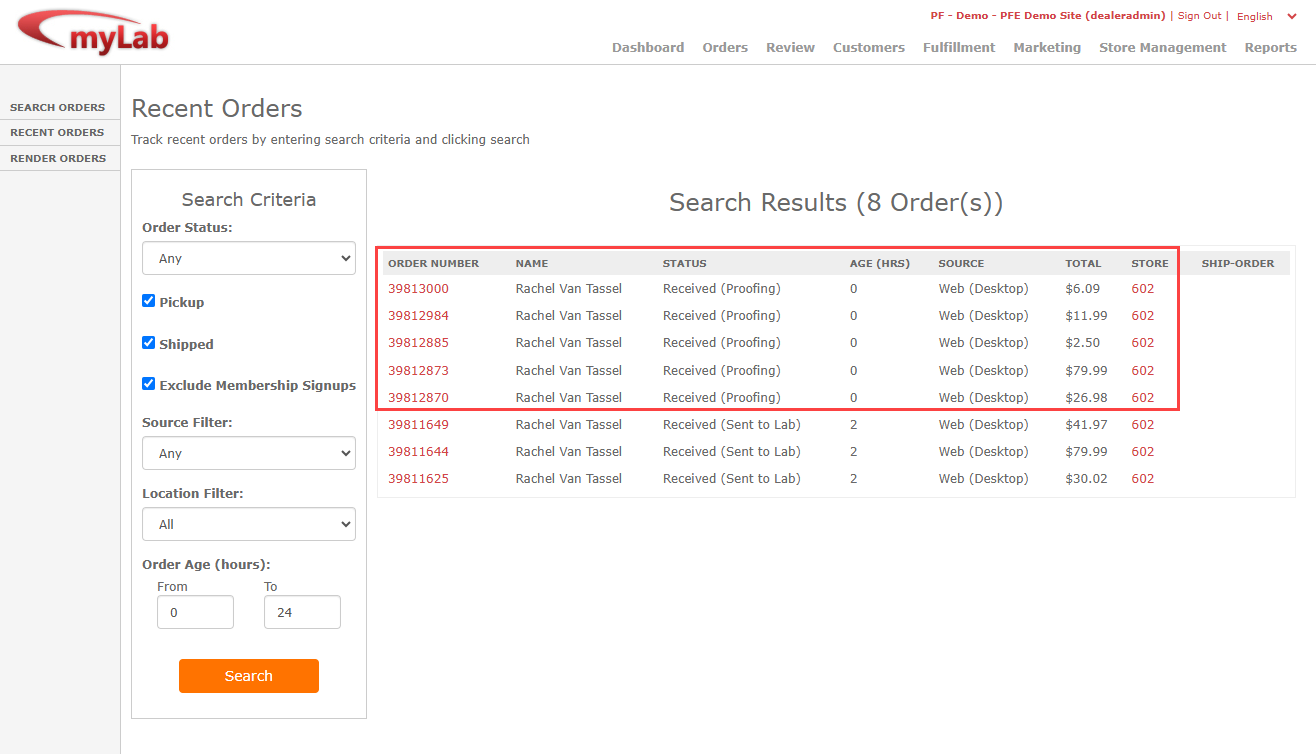
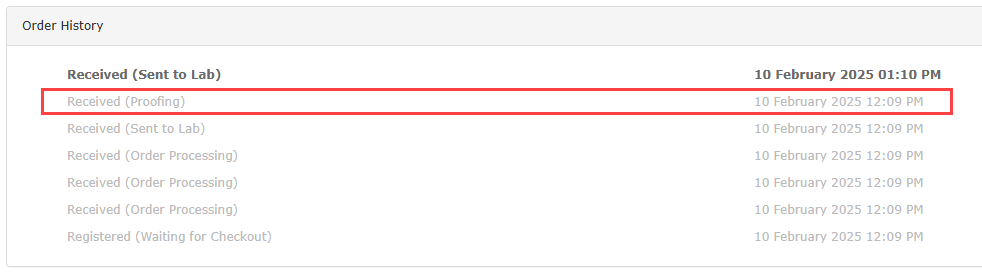
- In myLab, an order that is on HOLD will have a status of "Proofing"
Have questions? Ready to order?
Contact us via https://www.photofinale.com/GO