
Scanning
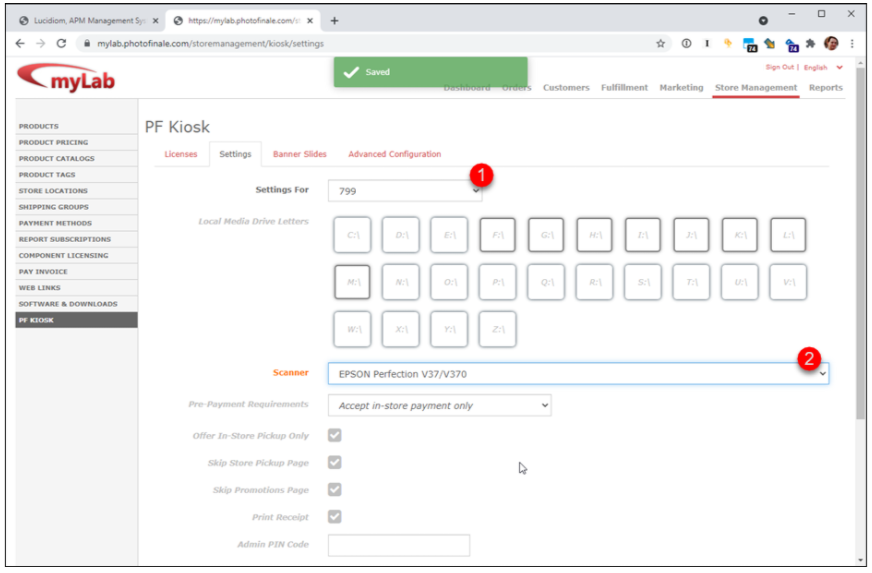
Configure PF Kiosk Scanning in myLab under Store Management by selecting a Kiosk ID, choosing a scanner, and rebooting the kiosk.
PF Kiosk Scanning is configured in myLab -> Store Management -> PF Kiosk -> Settings. (https://mylab.photofinale.com/storemanagement/kiosk/settings)
- Select a Kiosk ID
- Choose a Scanner
- myLab will save automatically
- Reboot the kiosk.
FAQ
Q: My scanner isn't listed... can it still work?
A: Possibly! Please make sure you have updated your kiosk to 1.2.35 or higher, and connected your scanner to the desired kiosk. Contact our support team at support@photofinale.com and include the kiosk ID you've connected the scanner to in your message. Put that kiosk in our support queue if it's not there already. The auto-reply to your support message will give you instructions.