---
title: Lab 50 Installation and Activation
description: >-
Learn how to install, activate, and log in to Lab 50 software, plus tips for
reinstalling and transferring settings between installations.
---
> **For AI agents:** the complete documentation index is at [llms.txt](/llms.txt). Append `.md` to any page URL for its markdown version.
### Installing Lab 50
Download from mylab in the **Store Management > Software Releases** section (details about how to install follow if you need them).
1. Double-click on the .exe
2. If a warning appears prompting you to verify that you want to open the file, click **Run** to continue.
3. Select the Language to use for your installation of Lab 50, then click **OK**.
4. Once the Introduction Screen Appears, click **Next** to continue.
5. Please read the Licensing Agreement, select the option **I accept the agreement**, and then click **Next**.
6. Select the installation path to use for installation of Lab 50 (recommend to leave this as the default)
7. Select which icons you would like the software to create for you, or if you don't want it to create any icons on the Desktop or in the Quick Launch bar, select the **Next** button.
8. Confirm the Destination Location is the path you would like to use for the software installation, and then select **Install**.
9. Once the software has finished installing, you will be prompted to restart your machine. You should restart the machine before proceeding to use Lab 50, but you may select to restart later if you have additional components downloading during installation such as Back Lab Burner. Click **Finish** to complete the installation.
Activate the APM by finding your IDs on the myLab dashboard ([https://mylab.photofinale.com](https://mylab.photofinale.com)) or from the email sent to you from our team after purchase.
- APM ID: xxxxxx
- Activation Code: xxxxxx
From there you need your:
- Dealer Code:
- Username: (usually *dealeradmin*)
- Password:
### Notes on a re-install
If the software is already installed on the computer then navigate to C:\APM\_FOLDERS\Tools\ActivationReset and run the Activation Reset utility.
To copy settings from a previous install:
Once Lab 50 is up and running wait for it to state “waiting for orders.” At that point close the program and copy the following files into their respective locations from the old install to the new install:
- preferences.xml - found in C:\Program Files (x86)\Lucidiom Lab 50 (on 32 bit machines it would be C:\Program Files\Lucidiom Lab 50)
- apmconfig\_printstaion.xml – found in C:\Program Files (x86)\Lucidiom Lab 50\Tools\PrintServer (on 32 bit machines it would be C:\Program Files\Lucidiom Lab 50\Tools\PrintServer)
Once the files are in place start the Lab 50 program and again allow it some time to load.
**Important:** Once the settings have been copied over do not have both the old and new Lab 50 software running on the network at the same time as both will attempt to collect orders from the kiosk and it may cause damaged or lost orders. Once the mentioned files have been copied to the new installation only one instance of Lab 50 should be running at a time.
### First time login
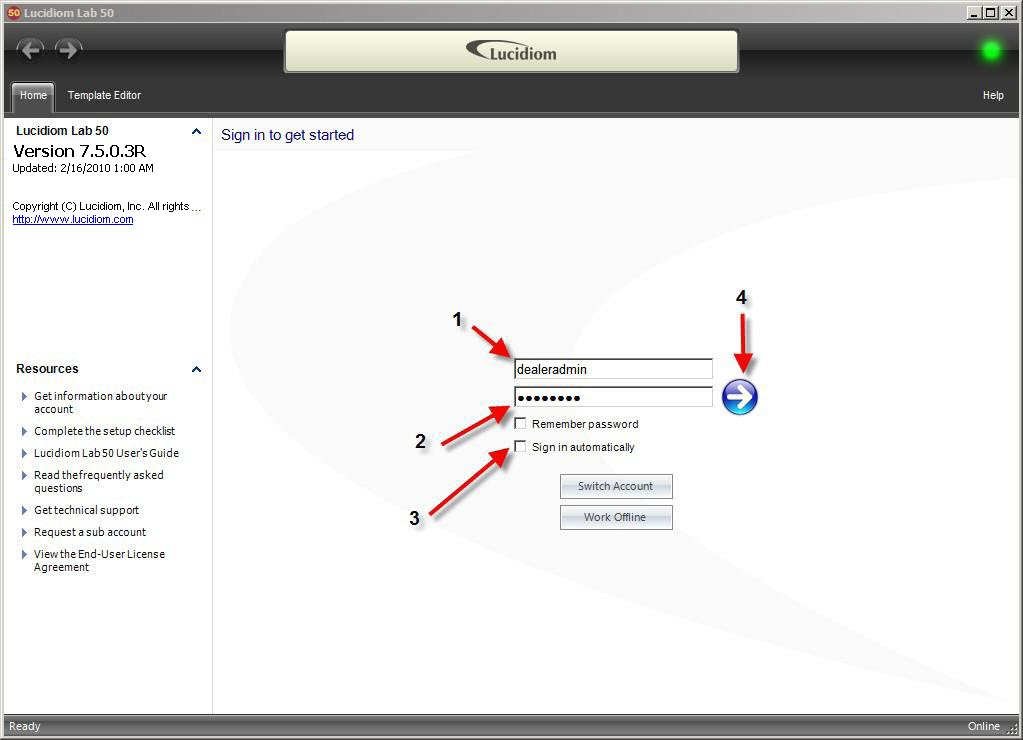
The initial Lab 50 login requires the following:
Enter the username, typically *dealeradmin*.
Enter the password (provided to you after purchase of the software).
If you want Lab 50 to remember the password or sign in automatically, check the appropriate box.
Click on the blue arrow button to the right of the text boxes to begin the sign-in process.
You can define user roles and create new users if desired by going to the Account Management tab.
### Assistance
If you need your credentials or any help, please email [support@photofinale.com.](mailto:support@photofinale.com.)
If you are stuck and need to get orders but cannot get Lab 50 going, you can grab order data from myLab in a pinch.