---
title: Faceted Product Search Links
description: >-
Link customers into the Photo Finale browse experience pre-filtered by
category, tag, product, or occasion using /browse/ URLs.
---
> **For AI agents:** the complete documentation index is at [llms.txt](/llms.txt). Append `.md` to any page URL for its markdown version.
The browse experience at `/browse/` gives customers a searchable, filterable view of your catalog. Faceted search links let you open that view already narrowed down — to a category, a tag, a single product's designs, or an occasion — so a marketing link lands customers on exactly the slice of your catalog you're promoting.
Results are always limited to your own store's catalog, no matter which filter the link starts from.
Replace `demo.photofinale.com` with your own PF site domain in any of these links.
## Choose a starting filter
Each link format below starts the browse page with a different base filter. Pick the one that matches what you're promoting.
Shows products in a category **and everything beneath it** — children, grandchildren, and so on. Use this for broad promotions like "all cards".
```text
https://demo.photofinale.com/browse/categories/{idCategory}/
```
Navigate to the desired category in myLab under [Store Management > Product Catalogs](https://mylab.photofinale.com/StoreManagement/ProductCatalogs).
The `idCategory` value is the number at the end of the URL.
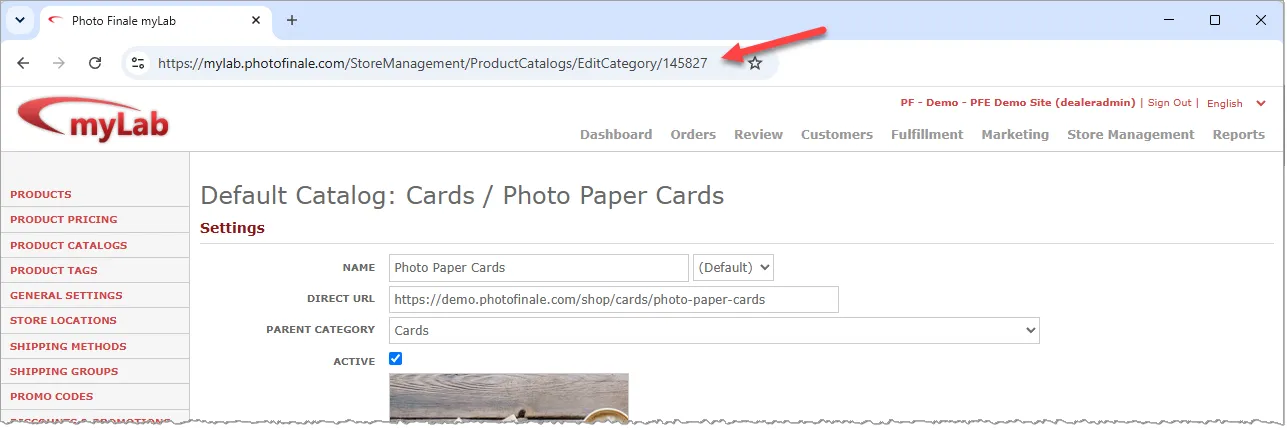
Shows only products directly in that one category, without subcategories.
```text
https://demo.photofinale.com/browse/category/{idCategory}/
```
Navigate to the desired category in myLab under [Store Management > Product Catalogs](https://mylab.photofinale.com/StoreManagement/ProductCatalogs).
The `idCategory` value is the number at the end of the URL.

Shows products carrying a product tag. Tags are a flexible way to group products across categories — see [Product Tags](/mylab/product-tags).
```text
https://demo.photofinale.com/browse/tag/{tagName}/
```
Shows a single product's designs in the browse view.
```text
https://demo.photofinale.com/browse/product/{idProductCategory}/
```
Shows products for an occasion, such as Baby or Christmas.
```text
https://demo.photofinale.com/browse/occasion/{occasion}/
```
## Pre-select an occasion on any filter
The category, tag, and product filters above also accept an optional `occasion` parameter, which starts the browse page with that occasion facet already selected. The available occasion names are listed in the [occasion ID reference](/pf-website/linking-into-pf-web/occasion-links#occasion-id-reference). For example, stationery products filtered to Baby designs:
```text
https://demo.photofinale.com/browse/tag/stationery?occasion=Baby
```
To pre-select more than one occasion, separate the names with a vertical bar:
```text
https://demo.photofinale.com/browse/tag/stationery?occasion=Baby|Birthday
```
Occasion names in the `occasion` parameter are case-sensitive. `occasion=Baby` works; `occasion=baby` does not.
## What's Next?
Create the product tags your tag-filtered browse links point at.
Classic occasion links and the occasion ID reference table.